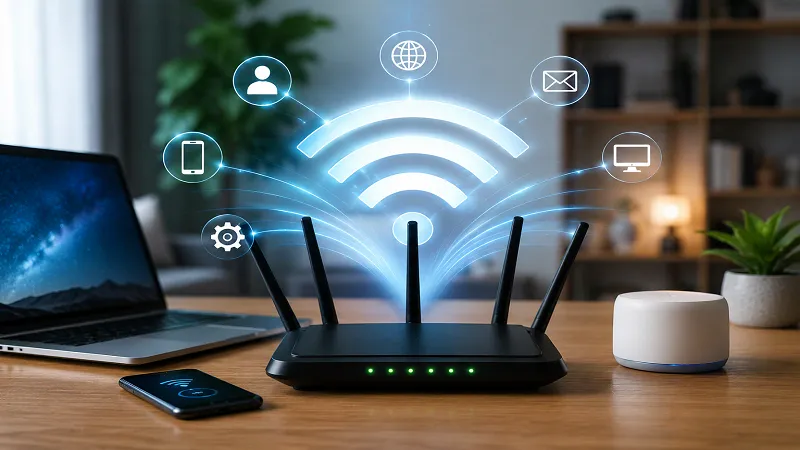
A slow or unreliable internet connection can make everyday online activities frustrating. Web pages may take longer to load, video calls can freeze, and streaming services may buffer unexpectedly. Fortunately, many connection problems can be improved without immediately upgrading your internet plan.
The Best Ways to Improve Internet Connection usually involve checking your router placement, reducing unnecessary network traffic, improving Wi-Fi coverage, updating equipment, and identifying whether the problem comes from your home network or your internet service provider (ISP).
This guide explains practical steps you can try at home, along with ways to determine when professional help or a faster internet plan may actually be necessary.
1. Restart Your Router and Modem
One of the simplest troubleshooting steps is restarting your networking equipment. Temporary software issues, connection errors, or network congestion can sometimes affect performance.
Turn off your modem and router, wait for a short period, and then turn them back on. Allow the equipment a few minutes to reconnect to your ISP before testing the internet again.
If your modem and router are separate devices, restart the modem first and allow it to establish an internet connection before restarting the router.
A restart is not a permanent solution to every problem, but it is a useful first step when your connection suddenly becomes slow or unstable.
2. Move Your Router to a Better Location
Router placement has a significant effect on Wi-Fi performance. If the router is hidden inside a cabinet, placed behind large objects, or positioned in a distant corner of your home, its signal may not reach devices effectively.
For better coverage, place the router in a relatively central, elevated, and open location. Keep it away from unnecessary physical obstructions and electronic devices that could contribute to wireless interference.
Google’s Wi-Fi guidance also recommends placing Wi-Fi equipment in open areas and adjusting its position when coverage is weak.
3. Choose the Right Wi-Fi Frequency
Modern routers commonly provide 2.4 GHz and 5 GHz Wi-Fi bands, and some newer equipment also supports additional bands.
The 2.4 GHz band generally travels farther and can work better through walls, while 5 GHz can provide faster performance at shorter distances. The best option depends on your router, device, home layout, and surrounding wireless networks.
If you are close to your router and need better performance for activities such as high-quality streaming or large downloads, try connecting to the faster available band.
For devices located farther away, the lower-frequency band may provide a more consistent connection.
4. Reduce Unnecessary Network Traffic
Multiple devices sharing the same internet connection can consume bandwidth and reduce overall network performance. Phones, computers, smart TVs, game consoles, security cameras, and other connected devices may all use the network simultaneously.
For example, if one computer is downloading a large file while another person is streaming high-resolution video, other devices may experience slower performance.
Check which devices are connected to your network and disconnect devices that are not needed. You can also pause large downloads, cloud backups, or software updates when you need more bandwidth for an important activity.
Managing connected devices is one of the practical Best Ways to Improve Internet Connection without immediately spending money on new equipment.
5. Use Ethernet for Important Devices
Wi-Fi is convenient, but a wired Ethernet connection can be more consistent for devices located near the router.
Consider using Ethernet for desktop computers, gaming systems, smart TVs, or other stationary devices where a cable is practical. A wired connection can reduce problems caused by wireless interference and distance.
The FCC notes that a direct Ethernet connection can provide high speeds and help reduce Wi-Fi congestion.
You do not need to connect every device with a cable. Using Ethernet for one or two bandwidth-heavy devices can leave more wireless capacity available for phones, tablets, and other mobile equipment.
6. Keep Your Router Firmware Updated
Router manufacturers periodically release firmware updates that may improve security, stability, compatibility, and performance.
Open your router’s administration interface or manufacturer’s management application and check whether an update is available. Follow the manufacturer’s instructions rather than downloading firmware from an unknown website.
Keeping networking equipment updated is especially important from a security perspective because outdated firmware may contain known vulnerabilities.
If your router supports automatic updates, enabling that feature can make maintenance easier.
7. Check for Wi-Fi Interference
Wireless interference can reduce connection quality, particularly in apartments, offices, and densely populated areas where many networks operate close together.
Other routers, electronic equipment, walls, and certain household devices can affect wireless performance. If your connection is noticeably better in one room than another, interference or physical obstructions may be part of the problem.
Try moving the router to a more open position and testing your connection from different locations. Google recommends experimenting with router placement and reducing potential sources of wireless interference when troubleshooting Wi-Fi problems.
8. Improve Wi-Fi Coverage with a Mesh System or Extender
If your home has dead zones, simply increasing your internet plan may not solve the problem. The issue may be weak Wi-Fi coverage rather than insufficient internet service.
A Wi-Fi extender can help reach areas where the router’s signal is weak. A mesh Wi-Fi system can provide broader coverage by using multiple connected access points.
Placement matters when using additional Wi-Fi equipment. An extender or mesh point should generally be positioned where it can still receive a strong connection from the main router rather than being placed directly inside the area with no signal.
For larger homes or buildings with thick walls, improving Wi-Fi coverage can make a noticeable difference.
9. Test Your Internet Speed Properly
Before changing your internet plan or buying new equipment, test your connection.
Run a speed test using a reputable service and record the download speed, upload speed, and latency. Repeat the test at different times of day and, if possible, test both Wi-Fi and Ethernet.
The comparison can help identify where the problem is.
For example:
- If Ethernet is fast but Wi-Fi is slow, your wireless network may need attention.
- If both wired and wireless connections are consistently slow, the problem may involve your ISP, modem, or service plan.
- If performance is good near the router but poor in distant rooms, coverage may be the main issue.
- If speeds drop dramatically at certain times, network congestion may be involved.
Do not judge your connection based on a single test. Multiple tests provide a more useful picture.
10. Check Your Internet Plan
Sometimes your home network is working correctly, but your internet plan does not provide enough bandwidth for your household.
Think about how many people regularly use the connection and what they do online. A household with several people streaming video, attending video meetings, gaming, downloading files, and using cloud services may require more bandwidth than a household with only basic browsing needs.
However, upgrading should not be your first response to every Wi-Fi problem. If the connection is weak because of poor router placement or interference, paying for a faster plan may not fix the underlying issue.
11. Secure Your Wi-Fi Network
An unsecured or poorly secured Wi-Fi network can allow unauthorized devices to connect and consume bandwidth.
Set a strong Wi-Fi password and enable the latest security features supported by your router. Review the list of connected devices periodically and investigate anything you do not recognize.
If you suspect someone else is using your network, change the Wi-Fi password and reconnect your own devices.
Network security also protects your connected devices and personal information, making it an important part of maintaining a reliable home network.
12. Update Older Network Equipment
Older routers and networking equipment may not support newer Wi-Fi standards or the speeds offered by modern internet plans.
If your router is several years old and consistently struggles with multiple devices, check its specifications before replacing it. Look for compatibility with your internet service, supported Wi-Fi standards, coverage requirements, and the number of devices you regularly connect.
You should not replace equipment simply because a newer model exists. Upgrade when your current hardware is genuinely limiting your network or no longer meets your needs.
13. Check Your Devices
Sometimes the internet connection is not the problem. A particular computer, phone, or tablet may have outdated software, excessive background applications, or a weak wireless adapter.
Test the connection on multiple devices. If only one device experiences problems while others work normally, investigate that device rather than changing your entire network.
Restart the affected device, install available system updates, check its Wi-Fi settings, and close applications that are using unnecessary bandwidth.
This simple comparison can save time and prevent unnecessary purchases.
14. Contact Your Internet Service Provider
If you’ve tried basic troubleshooting and both wired and wireless connections remain slow, contact your ISP.
Ask whether there are known service problems in your area and whether your modem is communicating properly with their network. Your provider can also check your service plan and connection from its side.
Google’s troubleshooting guidance similarly recommends contacting the ISP when speed tests consistently show performance below what you expect from your service.
Before contacting support, keep notes about when the problem occurs, which devices are affected, and the results of your speed tests. This information can make troubleshooting easier.
Common Internet Problems and What to Try
Different symptoms can point toward different solutions.
Slow internet everywhere:
Restart your equipment, run several speed tests, check your plan, and contact your ISP if performance remains consistently low.
Weak Wi-Fi in one room:
Move the router, reduce obstructions, or consider a mesh system or extender.
Good speed near the router but poor speed farther away:
The issue is likely related to Wi-Fi coverage, distance, walls, or interference.
Connection drops frequently:
Restart the network, check router firmware, inspect cables, and contact your ISP if the problem continues.
Only one device is slow:
Troubleshoot that specific device rather than replacing the router immediately.
Gaming or video calls lag:
Check latency, reduce heavy network activity, and consider using Ethernet for the most important device.
When Should You Upgrade Your Router?
A router upgrade may make sense when your current equipment cannot handle your household’s needs, has limited Wi-Fi coverage, lacks modern features, or regularly causes connection problems despite proper configuration.
Before purchasing anything, identify the actual problem. A new router cannot fix an ISP outage, and a faster internet plan cannot automatically eliminate Wi-Fi dead zones.
The best upgrade is the one that addresses the limitation you have identified.
Final Thoughts
A reliable internet connection depends on more than the speed advertised by your ISP. Router placement, wireless interference, connected devices, network equipment, Wi-Fi coverage, and the condition of your service can all affect everyday performance.
The Best Ways to Improve Internet Connection are therefore to diagnose the problem first and make targeted improvements rather than immediately paying for a more expensive plan.
Start with simple steps such as restarting your equipment, moving the router, reducing unnecessary network traffic, testing your speed, and checking connected devices. If those steps do not resolve the issue, investigate your equipment or contact your ISP.
Most importantly, focus on the actual cause of the problem. A well-configured network can provide a much better experience without requiring unnecessary upgrades or expensive equipment.
Frequently Asked Questions
Can moving my router really improve internet speed?
Yes. Better router placement can improve Wi-Fi signal strength and coverage, which may improve the practical speed and stability experienced by your devices.
Is Ethernet better than Wi-Fi?
For stationary devices, Ethernet can provide a more consistent connection and avoid many wireless interference issues.
Does restarting a router improve internet speed?
Restarting can resolve temporary connection or software issues, although it will not increase the maximum speed provided by your ISP.
Should I buy a new router if my internet is slow?
Not necessarily. First determine whether the problem comes from Wi-Fi coverage, your device, the router, or your ISP.
How can I improve Wi-Fi in another room?
Try improving router placement first. If coverage remains weak, a properly positioned extender or mesh Wi-Fi system may help.
Why is my internet fast on one device but slow on another?
Different devices can have different Wi-Fi capabilities, software configurations, signal strength, and background network activity. Testing several devices can help identify the cause.